Guide
Using Skuvelo on your phone
The dock, the More sheet, and the context rails that make the full workspace usable from the shop floor, not just a desk.
Skuvelo's phone layout gives you the same workspace context for everyday review and follow-up, organized for one-thumb use. A few setup tasks that need their full forms, such as creating or editing suppliers, stay on a tablet or desktop.
This guide is the workspace as your phone's browser renders it. Skuvelo also has an installed app, which has its own navigation and its own scan button — see Using the Skuvelo app.
The dock
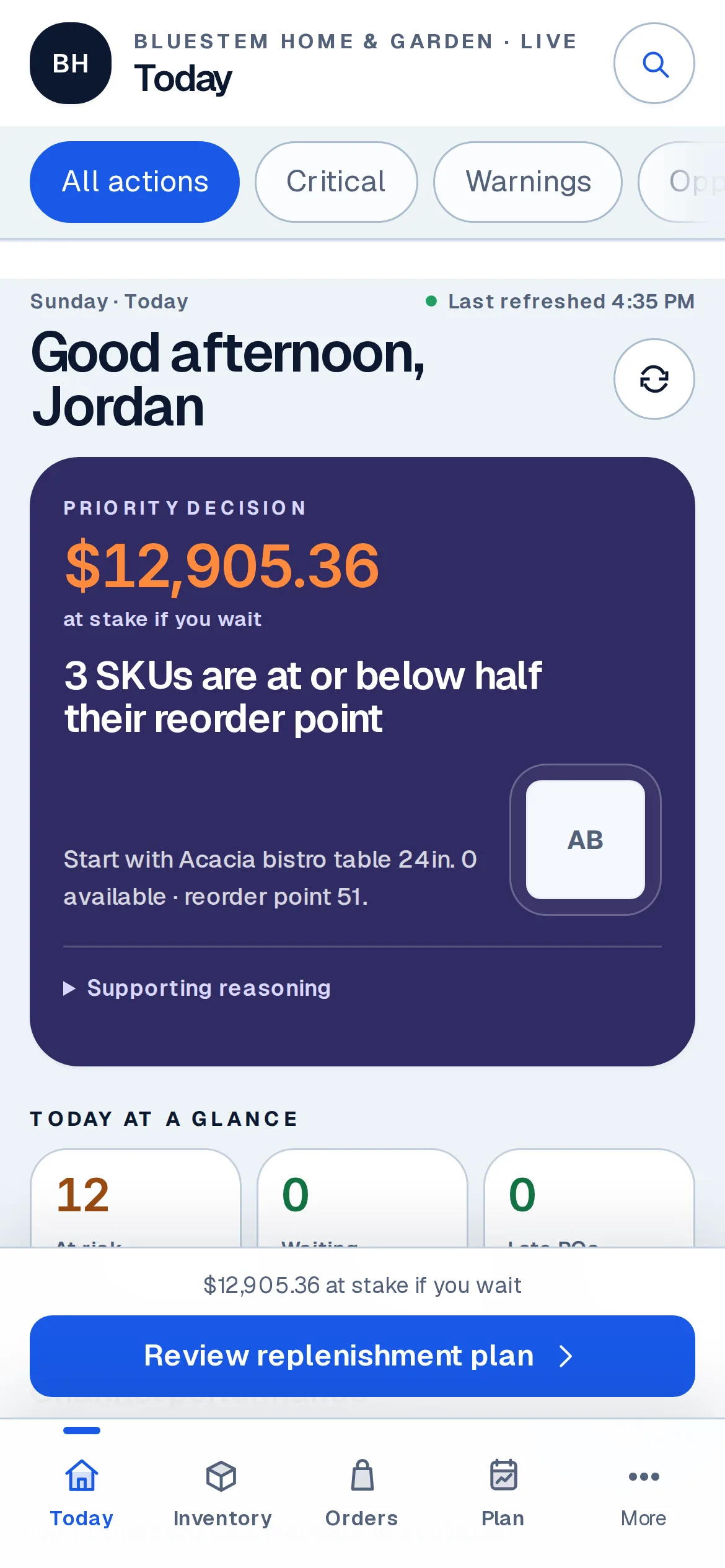
Open Skuvelo on your phone and a dock sits along the bottom: Today, Inventory, Orders, Plan, and More, each one tap away. The active tab is always highlighted, so it's clear where you are without needing a page title.
Context rails
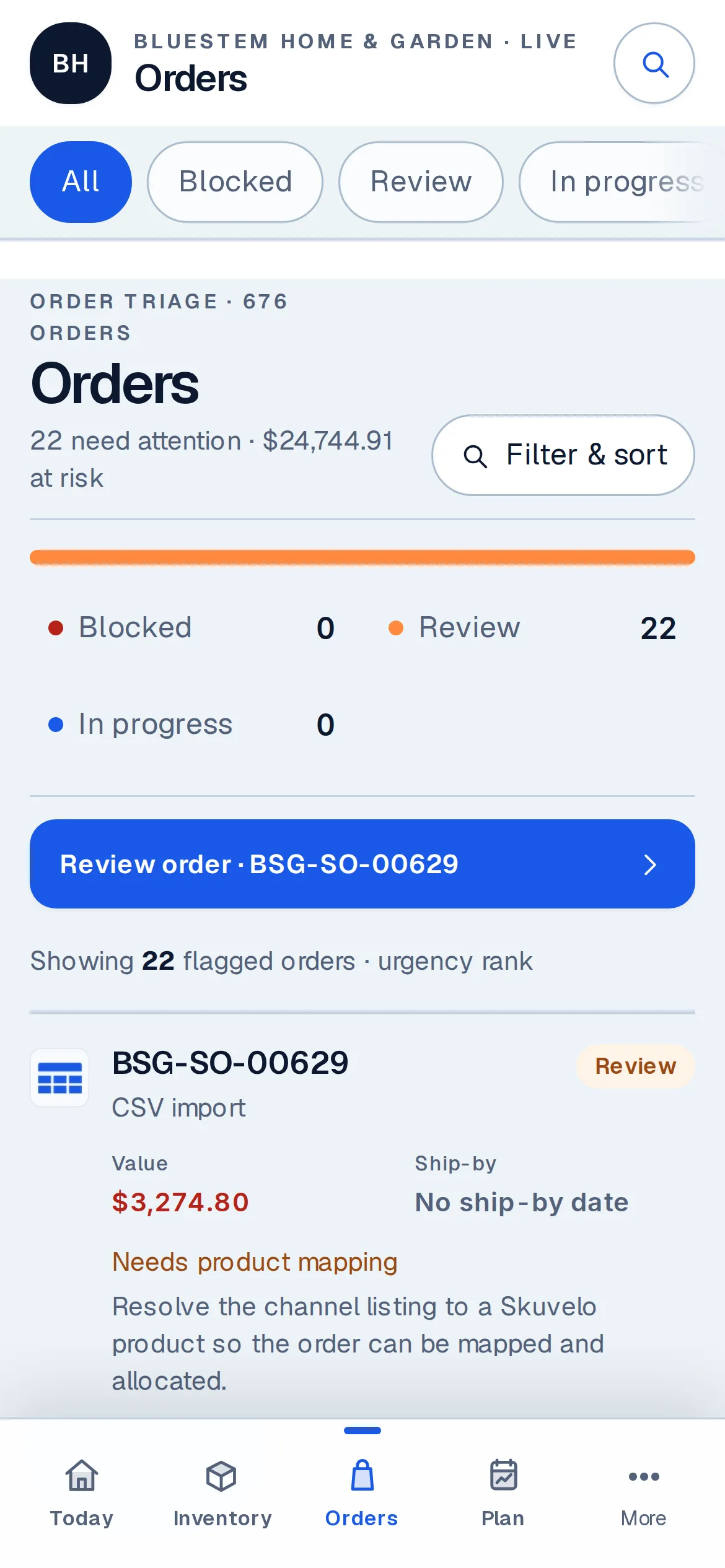
Inside a section, a pill rail under the header switches between that section's views without leaving the page. On Orders, for example, tapping Blocked or Review filters the list in place — useful for triage from the floor without a full page reload for every view.
Everything else, via More
The dock's fifth tab, More, opens a full sheet listing every other destination. Help is the first row, so it's always one tap away; below it come Purchasing, Suppliers, Shipments, Finance, Reports, and Integrations.
Scroll down and you'll find Settings, Team & roles, and Sign out — every workspace destination your role allows is reachable from here, not just the five on the dock.
Acting from the floor
The actions your role has at a desk are on the phone too:
- Flagged items. Each flagged item has Why? for its detail. If your role manages flagged items, you also get Assign to me, Start review, Resolve, and Dismiss. Resolving or dismissing asks what happened first.
- Sign-offs. A purchase order waiting for approval shows who asked for it and the order value against your team's approval threshold — the figure from the spend policy, not your own limit — with a link to review the order.
- Purchase orders. If your role can't approve or change an order, the page says so and names who in your team can approve it and who can change it.
- Shipments. Trace shipment opens a shipment's timeline. If your role can log tracking events, you can log one from there.
- Scanning. Counts, transfers and shipments have Scan barcode, which uses your phone's camera in the warehouse instead of scrolling a list. See scanning barcodes.
Adding Skuvelo to your home screen
Skuvelo is an installable web app: open it in your phone's browser and use that browser's own Add to Home Screen (iOS Safari) or Install app (Android Chrome) option from its menu. That puts a Skuvelo icon on your home screen alongside your other apps, so you don't have to open a browser and navigate to it each time.
Try the plan on your own stock.
Start a trial with your own sales and stock, or look around the live demo first.